Themes, language and preferences
A comfortable writing space can make it easier to settle into a chapter. Settings lets you choose the app's colours, interface language and reading preferences, then adjust how much space the editor uses. Start with the changes that help you read comfortably; you can return to the others whenever you need them.
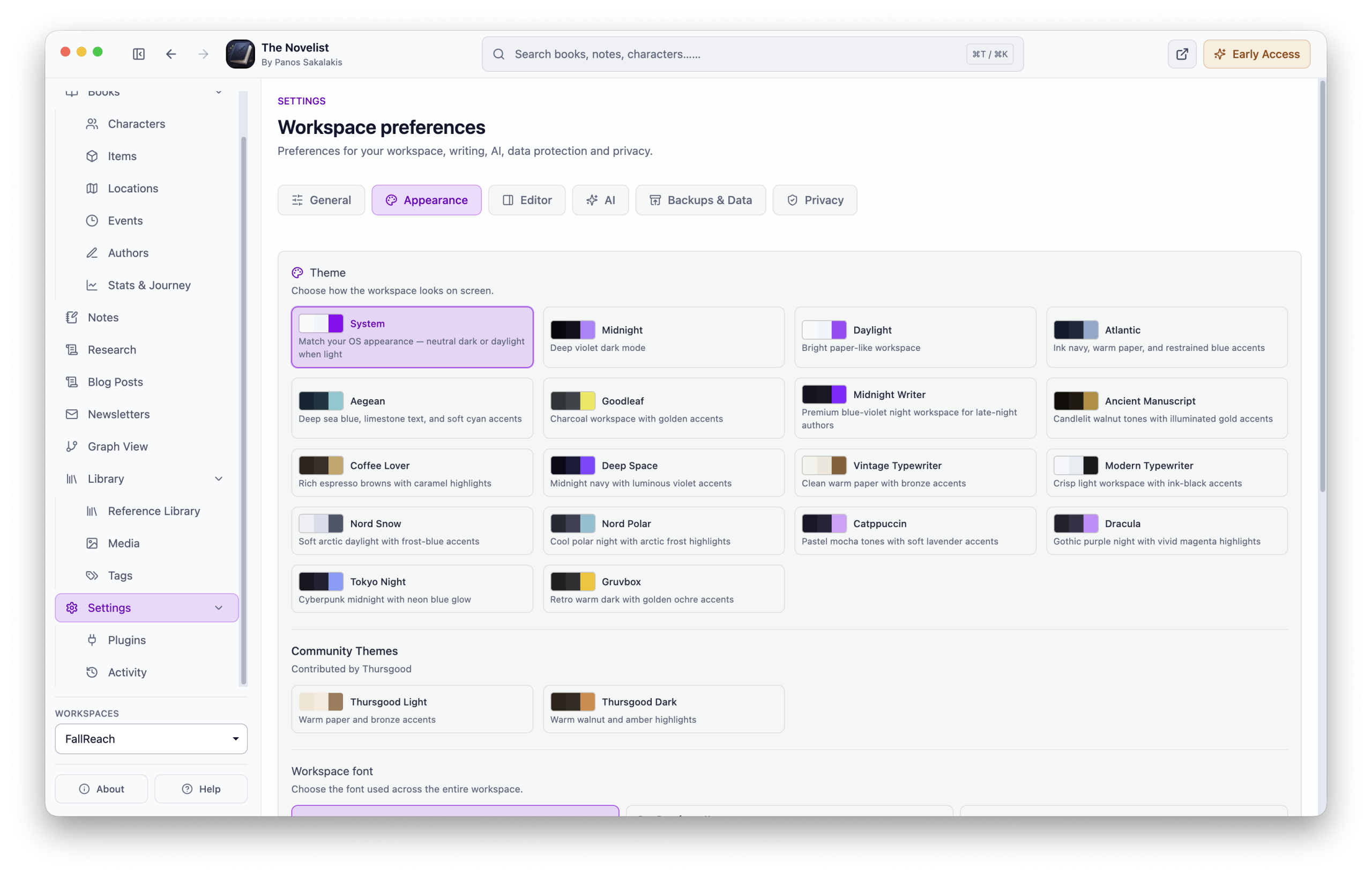
Choose a theme
- Open Settings in the left navigation.
- Choose Appearance.
- Under Theme, select an available theme. The choice applies as you select it.
System follows your computer's light or dark appearance. Midnight, Daylight, Atlantic and Aegean are also available without Pro. Other earned themes require Pro as well as their displayed unlock condition. A locked theme shows what you still need to do, so you can check its requirements before choosing a new goal.
Make text easier to read
In Appearance, Workspace font lets you try the available fonts. Compare a few using the sample text, then return to your writing to see which feels comfortable for longer sessions.
Two further controls change readability. Increase contrast makes text and borders clearer. Softer text colors uses dimmer text in dark themes and gentler contrast in light themes, including in the writing editor. Increasing contrast turns off softer colours while it is enabled.
You can also enable Wide editor for a wider writing column. Sidebar depth cues fades navigation items according to their distance from the current page. Try these preferences one at a time so you can judge whether each helps you.
Change the interface language
- In Settings, choose General.
- Find Language and select English or Ελληνικά.
This changes menus, buttons and other interface labels. It does not translate your manuscript. Theme and language are separate choices, so you can use either language with your preferred appearance.
Choose your writing tools
Under Editor in Settings, the Right sidebar checkboxes let you show or hide Assist, Review, Preview, Comments and Notes. For example, keep Notes available for revision reminders and hide a panel you seldom open.
To change whole sections in the left navigation, open Plugins. These choices let you keep the writing tools you use close at hand and bring other sections back later.
Screen appearance and a book's printed design have different controls. For type and page design in a particular book, follow Book Previewer and reading layouts.
Community themes
Thursgood Light and Thursgood Dark are community themes available in the Appearance theme list. Choose the light or dark variant that suits your writing. To create and submit your own theme, visit the Community Themes page.