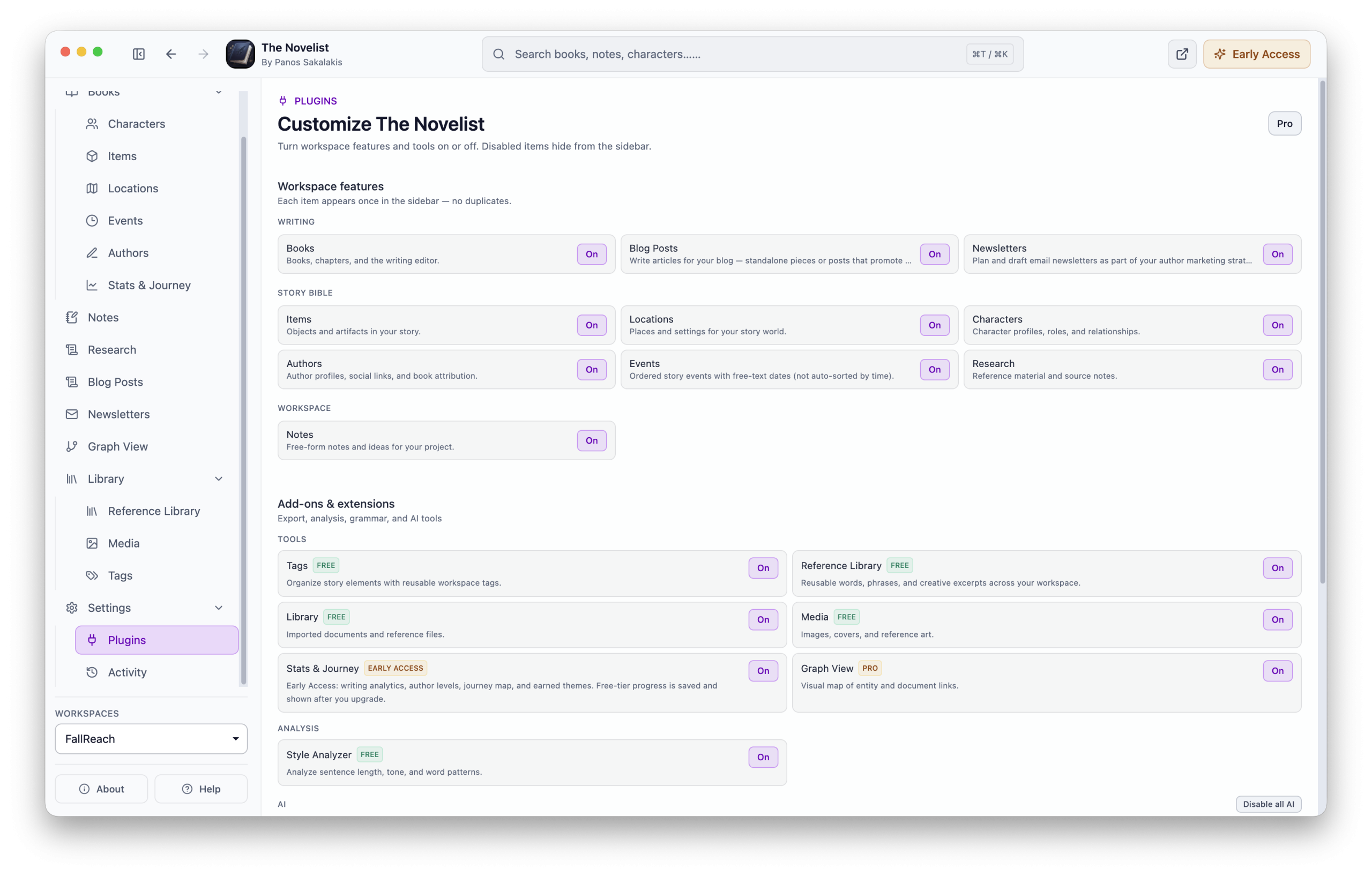
Plugins and writing workflows
Plugins are a way to show only the parts of The Novelist that you want to use. You might want books, characters and research for a novel, then add blog posts or newsletters when you begin writing updates for readers. You can change these choices as your work develops.
Show or hide a tool
- Open Plugins in the left navigation.
- Under Workspace features, find the section you want, such as Books, Characters, Research or Newsletters.
- Use its switch to turn it on or off. The On or Off label shows its state.
- Open the enabled section from the left navigation to use it.
Turning off a section hides the tool; it does not delete the writing or story details you have already saved. To return to them, open Plugins and turn the section back on. For example, you can hide Newsletters while concentrating on a revision, then enable it again when you are ready to write the next issue.
Build a useful set of tools
For a novel, start with Books and add Characters, Locations, Events, Notes or Research when they help you remember the story. You do not need to fill every part of your fictional world before drafting the first chapter.
If you also write for readers outside the book, turn on Blog Posts or Newsletters. Media can hold cover art, portraits and reference images, while Reference Library keeps useful names, words and creative fragments. Keeping a section visible is a practical choice about what you need nearby.
Choose additional tools
The Add-ons & extensions area contains further tools, including export, analysis, grammar and AI options. Check the label beside a tool: some are Free, while others require Pro and may be marked Early Access. A Pro tool needs an active Pro license as well as being enabled.
Use the individual AI switches to keep the tools you want enabled. When all AI tools are enabled, Disable all AI turns them off together. Enabling an AI tool is a separate step from choosing and configuring the AI service you want to use; follow the relevant AI guide for that setup.
When a section seems to be missing
Return to Plugins first and check whether the feature is off. If it is a Pro tool, also check your license status in Settings. Then make sure you have the workspace containing the writing you expect to see. This is often enough to explain a missing navigation entry without changing any of your work.
For the smaller tools beside an open chapter, use Settings, then Editor. Its right-sidebar choices let you adjust those panels separately from the main sections.