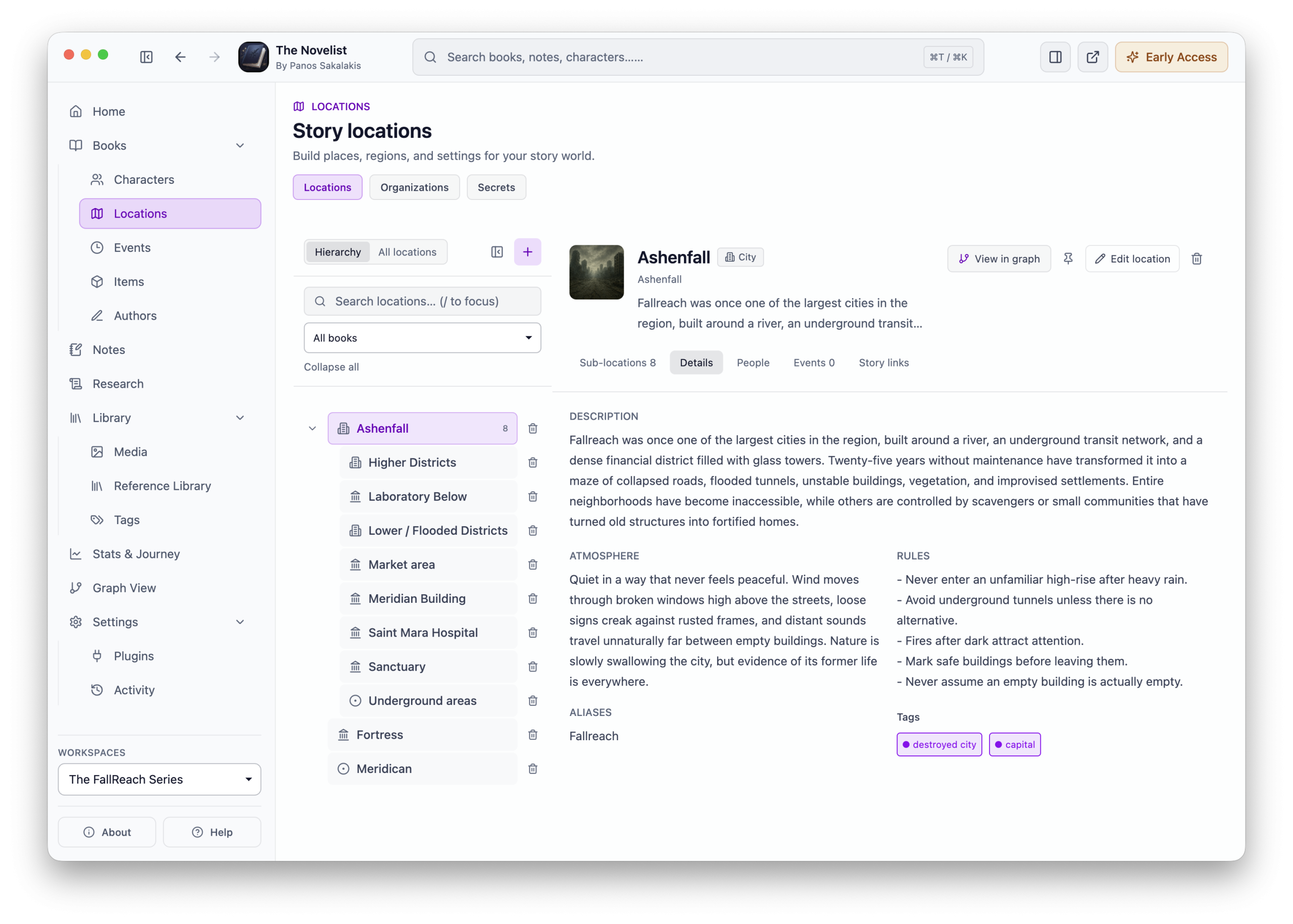
Locations and sub-locations
Locations help you remember what makes each setting distinct and how your fictional world fits together. A location can be a whole country or a single room. Nest smaller places inside larger ones to build a useful outline of the world: Country, City, Neighborhood; Kingdom, Province, Village; or Spaceship, Deck, Room.
Begin with the places your next chapters need. A name and a few lines may be enough; you can develop the rest as your story takes shape.
Add the first place
- Expand Books in the left navigation, open Locations and select the Locations tab.
- Choose the book you are working on from the book filter.
- Select Add location. Enter a Name and choose a Type, such as country, city, building or room. Choose Custom to give a place your own type, such as spaceship.
- For a place at the top of your outline, leave Parent location set to None (top level). Add a description, image or other details you already know.
- Select Create.
Put smaller places inside it
- Select the larger place, such as your kingdom or spaceship.
- In Sub-locations, select Add sub-location.
- Enter the smaller place's name and type. Check that Parent location shows the place it belongs inside.
- Select Create. Repeat for further levels: a deck can contain rooms, just as a city can contain neighborhoods.
Use the arrows beside places to expand or collapse their branches in Hierarchy. Switch to All locations for a flatter list, or search for a name when you already know where you want to go. Selecting a search result reveals the place in the hierarchy.
Keep useful scene details
Select a place and choose Edit location to develop its description. Atmosphere is a good home for sensory reminders: the smell of diesel, voices carrying down a stairwell, or the glare of afternoon sun. Rules can hold details such as a curfew, restricted entrance or limits on magic. Optional further fields cover population, climate, dangers, interior layout and continuity notes.
Text changes save when you leave a field. Select Done when you finish editing. The location overview also has sections for people, events and story links, so you can return to the writing and connections associated with the place.
When a place moves
To put an existing place inside a different one, change its Parent location while editing. The available parents belong to the same book; a place cannot be placed inside itself or one of its own sub-locations. If you delete a place that contains smaller places, the dialog asks whether to move those sub-locations to its parent or make them top level. Read that choice carefully before confirming.