Parts, chapters and book pages
Your book can be a straightforward sequence of chapters, or a longer manuscript grouped into Parts. Parts are useful for larger divisions such as Part One, Part Two and Part Three, a change of narrator, or separate periods in the story. If your novel does not need them, keep its chapters directly in the manuscript.
Start with a chapter
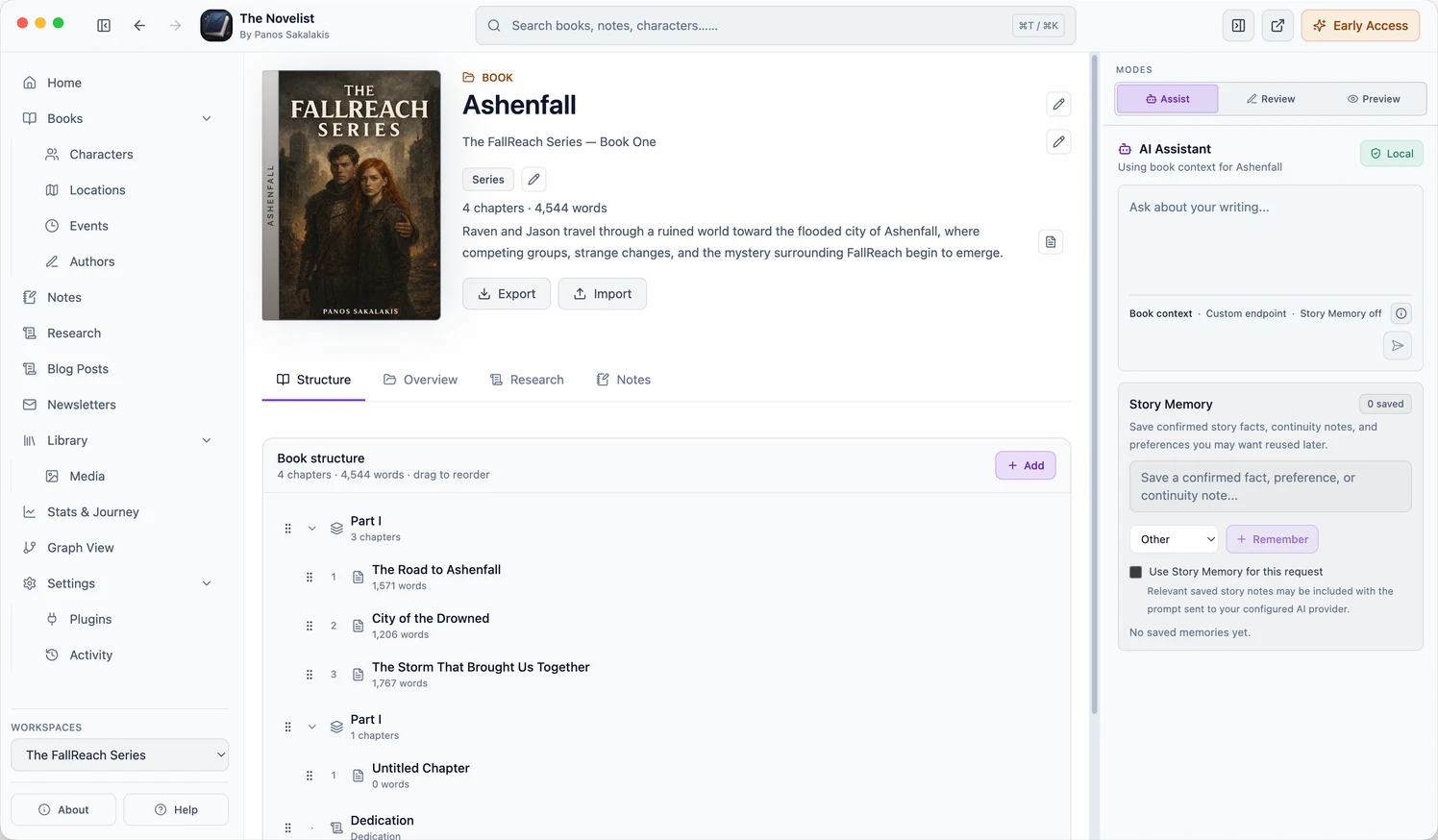
- Open Books in the left navigation and choose your book.
- Open the Structure tab to see its contents in reading order.
- Click Add, then New Chapter.
- Open the chapter and enter its title in the title field above the writing area. Start the story in the editor below.
You can build the outline a chapter at a time. A descriptive working title such as The letter arrives is often more useful during drafting than deciding on final chapter names immediately.
Group chapters into Parts
- Return to Structure and choose Add, then New part.
- Use the pencil icon labelled Rename Part label to enter a label such as Part One. Press Enter to save.
- Drag a chapter onto the middle of the Part's row to place it inside that Part.
- Use the arrow beside the Part to expand or collapse its chapter list.
For a Part with its own name, open Part details from its row. Enter a Label such as Part One and a Title such as The Crossing. You can also add a Description. Select Include description in manuscript if that description should be read as part of the book, then click Save.
Change the reading order
Drag a chapter or Part above or below another row to change its position. To take a chapter out of a Part, move it above or below the Part itself. This lets you try a different sequence without copying the chapter's text. Reopen the moved chapter afterward to continue working in its new place.
Add the pages around the story
Front matter is material before the main manuscript, such as a dedication. Back matter follows the story, such as acknowledgements or an author page. In Structure, open Add and choose the page you need, such as Dedication or Acknowledgements. The new page opens for editing.
Add these pages when they become useful; you do not need to prepare them before drafting chapter one. Take care with the trash icons: they delete content. If you only want a different reading order, drag the existing page instead of deleting it and starting again.