Find writing and navigate your story
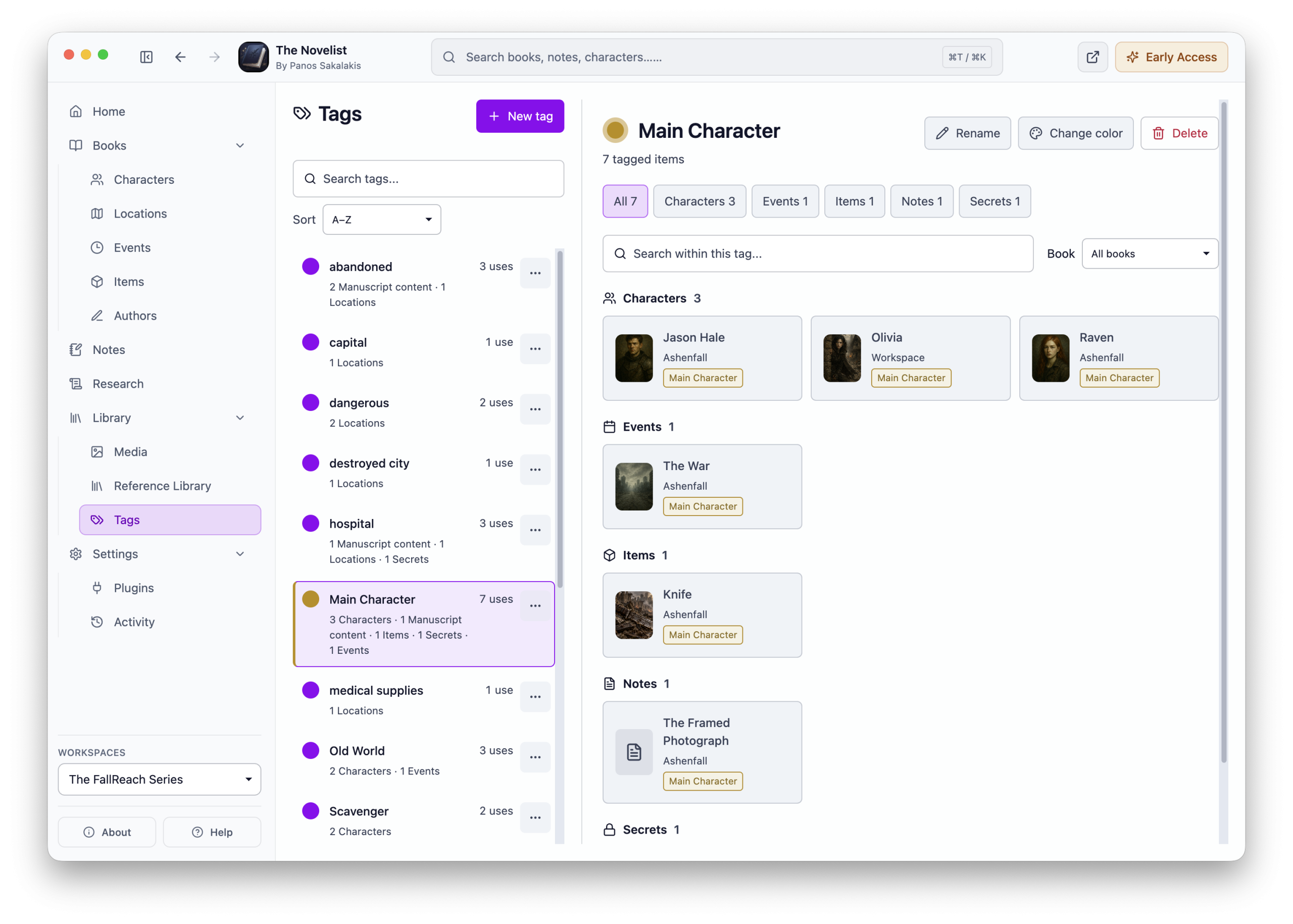
When you remember a name or a phrase but not where you used it, the search field at the top of The Novelist can help you find your way back. It searches book and chapter text, notes and research, as well as details about characters, locations and events. You can look beyond a title: a phrase from a chapter or a character's description can also produce a match.
Find a passage or story detail
- Click the search field at the top of the window. You can also press Cmd+K or Cmd+T on macOS, or Ctrl+K or Ctrl+T on Windows.
- Type a distinctive name or phrase, such as the lighthouse's name or a few words from the missing letter.
- In the results panel, check Search in. Choose This project to keep the search in the current project, or All projects to look across projects in the open workspace.
- Read the result's title and type. A result may also explain that the match is in the body or description rather than in the title.
- Click the result to open it. With the keyboard, use the up and down arrows to select a result, then press Enter.
Press Escape if you want to close the results without opening anything. If several results look alike, use a more specific phrase. A matching title appears ahead of a match found only within the text, so a familiar chapter name is often a useful starting point.
Return to where you were working
The top-bar arrows labelled Go back and Go forward move through your navigation history. They are useful when you leave a chapter to check a character or note and want to return to the writing. Within a book, the chapter arrows above the editor offer another way to move to neighboring chapters.
When a result does not appear
Try a shorter phrase or check the spelling. Search matches the words you enter, so a different name or wording may not find the passage. Check whether This project is limiting the results and try All projects when needed. That wider option still searches the workspace you have open; it does not look through other workspace folders on your computer.
For a chapter whose name you cannot remember, opening the book's Structure tab can be easier than searching: browse the sequence and choose the chapter directly.