Book Previewer and reading layouts
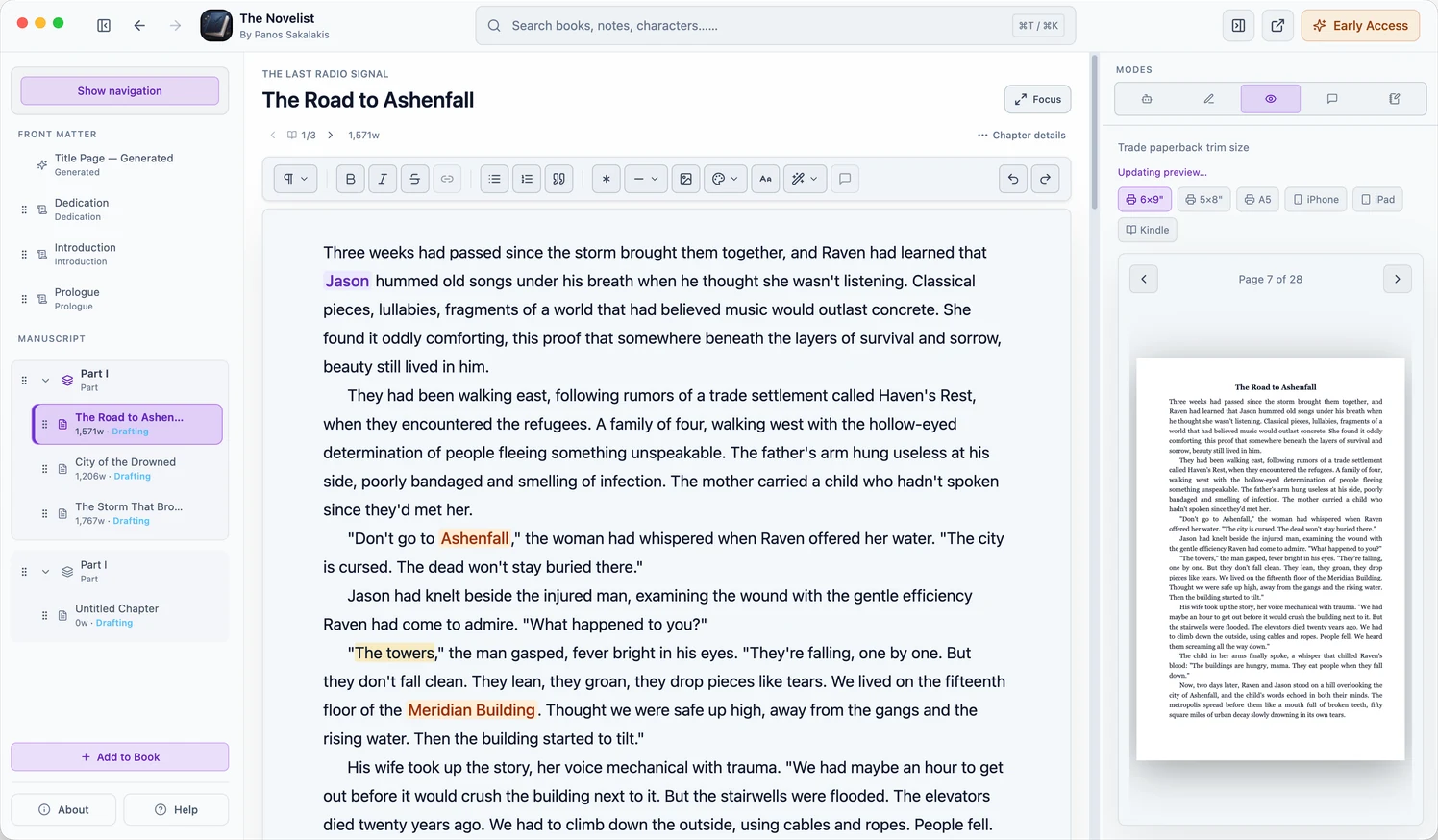
Preview lets you step back from editing and read your work as a book. It brings together the opening pages, Parts, chapters and closing pages in reading order, so you can check how the whole manuscript flows. It is available in Free.
You might use it after rearranging chapters, adding a dedication or placing an illustration. Seeing those pieces together can make an awkward transition easier to spot than when you are working on one chapter at a time.
Open your book in Preview
- Open the book you want to read, or a chapter belonging to it.
- Choose Preview, marked with an eye icon, in the panel on the right.
- Choose a layout above the book. The print choices are 6×9", 5×8" and A5. The screen choices are iPhone, iPad and Kindle.
- Use the previous and next page arrows for a print layout. In a screen layout, scroll through the text.
If you have been typing, pause briefly and allow Preview to catch up. A message tells you when it is waiting for a pause or updating the book.
Choose a useful reading layout
The print layouts divide the book into pages. Try a smaller size when you want to examine where a chapter heading or illustration falls. The page counter helps you move through the result.
The iPhone, iPad and Kindle layouts give you different reading widths in a scrolling view. For example, a narrow phone layout is useful for looking at a long paragraph or checking how an image sits between passages. These are reading previews; selecting Kindle does not create an ebook file.
Check the book from beginning to end
Read the opening pages as well as the main story. Check the title page, the sequence of Parts and chapters, scene breaks, illustrations and the material after the final chapter. If you have assigned covers, the tabs above the preview let you inspect the front cover and cover spread as well as the interior.
Use what you notice to guide your next edits, then return to Preview. When you are ready to share the book, export it in the format you need and open the saved file too. A PDF has fixed pages, while an EPUB reader can change text size and page flow, so that final reading check belongs in the exported file.