Items, objects and contributors
A stolen letter may need as much attention to continuity as the person carrying it. Items give significant objects a place in your story notes. Authors serves a different purpose: it keeps the contributors behind your books together, including co-authors, editors, translators and publishers. Both are available beneath Books in the left navigation.
Create an item for your story
- Open Items and choose the correct Book.
- Select New Item, enter a Name and, if useful, a Category / Type, such as letter, weapon or heirloom.
- Select Create. The item's details open for you to develop.
- Add a description, appearance, aliases or status. Open Story for its history and significance, and Additional for notes and tags.
- Select Save before leaving the item or changing books.
Use these fields for details you are likely to need again. For a brass key, appearance might record the broken tooth that identifies it; history could explain who had it before the story began; significance could explain why the locked room matters. A status such as missing or destroyed can help you remember its condition when revising.
You do not need a complete history for every prop. Start with the few objects whose identity, condition or importance affects the plot. Search and the category and status filters help you find them as the list grows.
Connect an object to the story
The Connections panel below an item's details lets you connect it to relevant writing, characters, places or events. Select Link, choose what to connect and the relationship, then select Add link. For example, you could connect the key to the chapter where it is discovered and to the character who recognizes it.
While writing a chapter, you can also use an @ mention to choose an item from that book. See mentions and appearances for the writing workflow.
Add a contributor
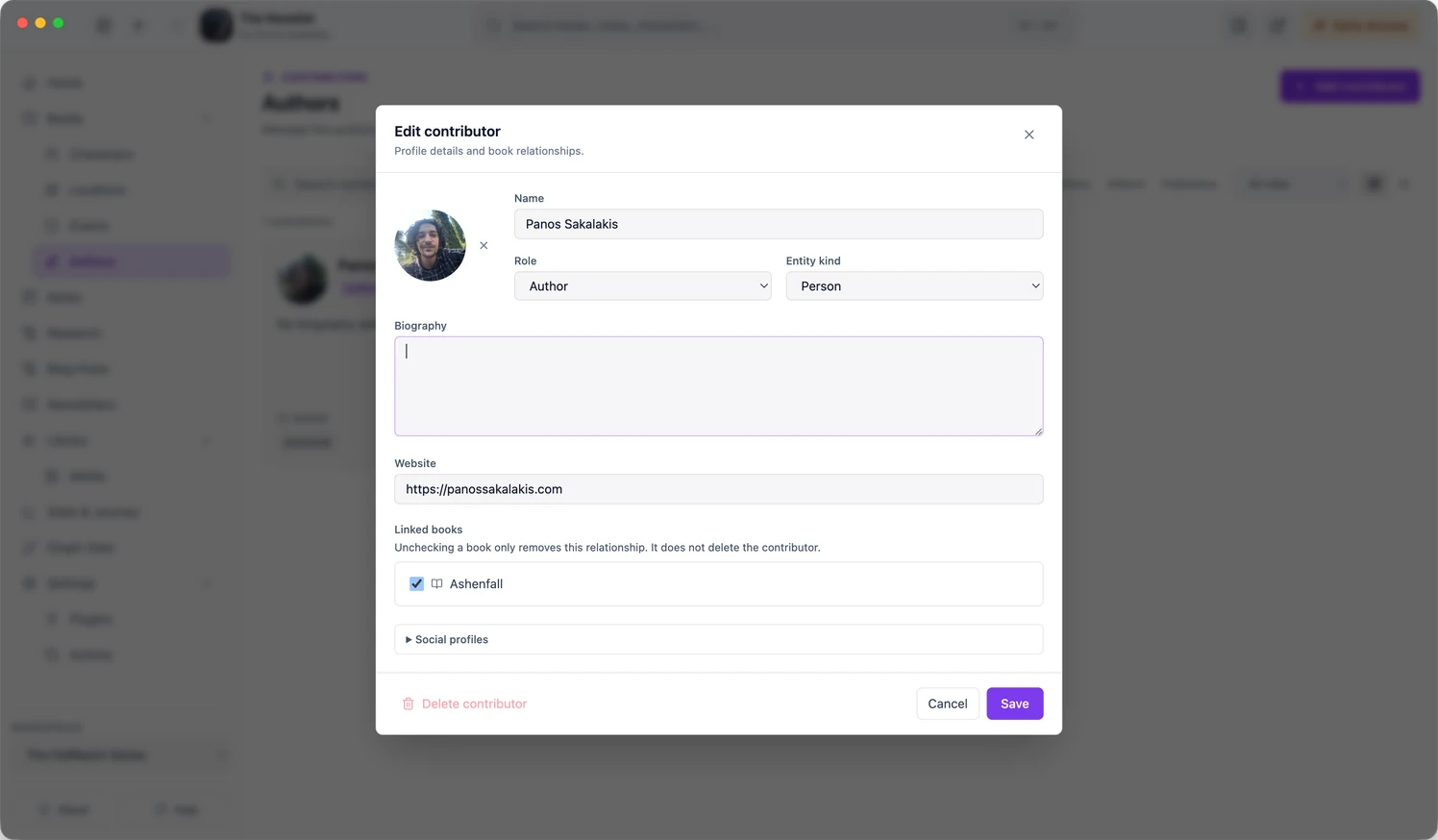
- Open Authors and select Add contributor.
- Enter the contributor's Name and choose a Role, such as author, editor, translator or cover designer.
- Add a biography, website and photo if useful. A publisher or imprint can be represented as an organization with a logo.
- Under Linked books, check each book the contributor works on.
- Select Save.
The contributor dialog also offers social profiles and a custom role when the standard choices do not fit. You can link one contributor to several books, so an editor or publisher does not need a separate profile for every title. Search by name, role, biography or book, or use the role filters to find someone later.
To change a contributor's books, edit their profile and update the checkboxes. Unchecking a book removes that connection when you save; it does not delete the contributor or the book.