Formatting, scene breaks and images
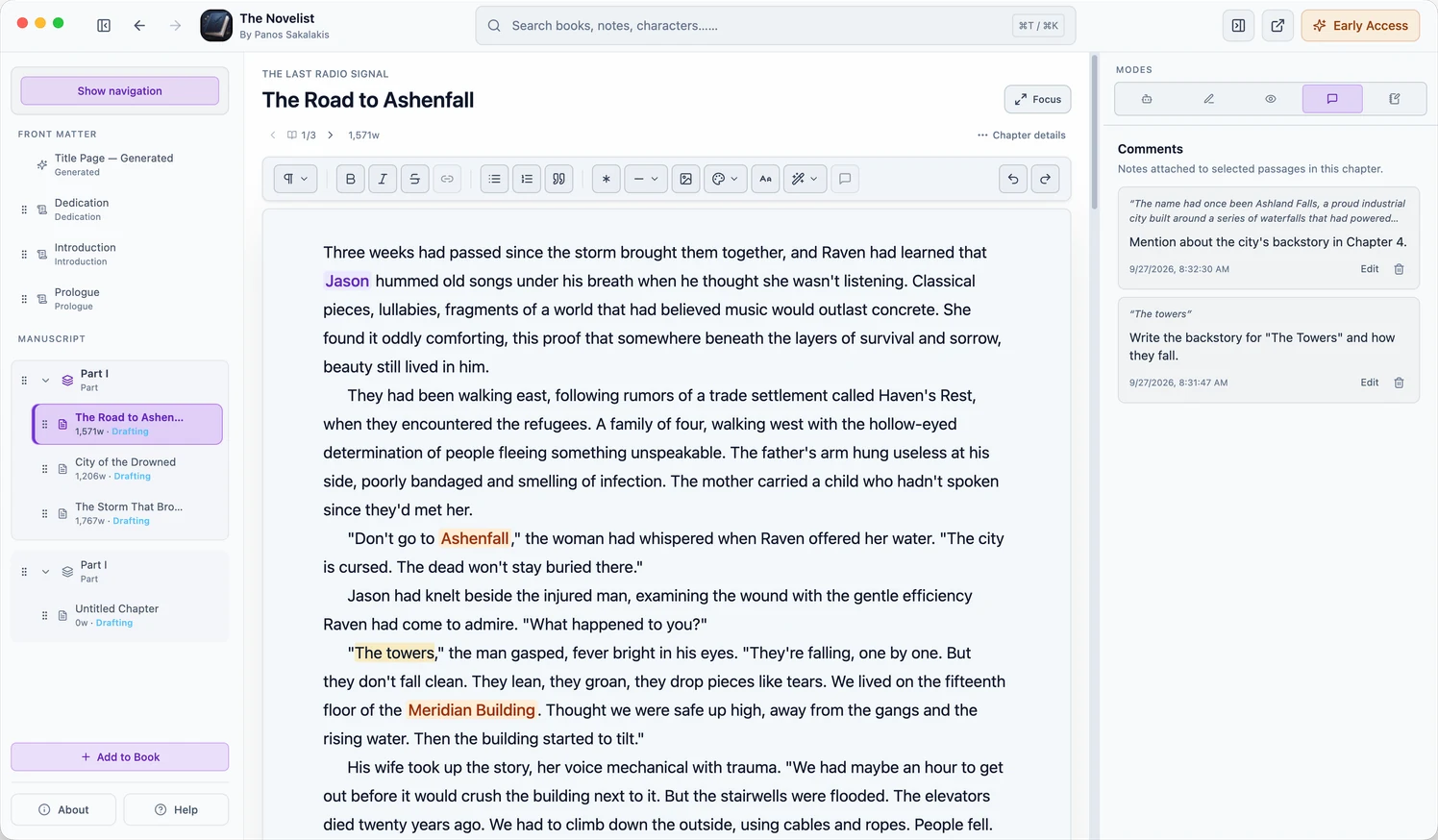
The toolbar above an open chapter gives you the familiar tools for shaping a draft: emphasis, headings, lists, links and illustrations. You can use them as you write or return during revision. A passage of remembered dialogue might need italics; a letter within the story might benefit from a quotation style.
Format a passage
- Open the chapter and select the words you want to change.
- Click Bold or Italic in the toolbar. Hover over an icon to see its name.
- For a heading, place the cursor in the paragraph and choose a heading level from Block type. Choose Paragraph to return it to normal prose.
- Use Bullet list, Numbered list or Quote when the passage needs that structure.
In a narrow editor, some tools move into More. Look there if a familiar control is no longer visible. You can use Undo and Redo at the right of the toolbar while adjusting the text.
To add a web link, select its visible words and choose Link. Enter the destination address. The editor accepts web addresses beginning with http or https, as well as email links; use a complete address so the destination is clear.
Give scenes a clear boundary
Place the cursor where one scene ends and the next begins, then choose Scene break. This creates a scene divider without adding to the prose word count. It is useful for a shift in time, place or viewpoint within the same chapter.
Separators offers Line, Dotted line and Thick line for visual divisions. Page break serves a different purpose: it marks where a new page should begin. Choose a scene break for a change in the story and a page break when the page boundary itself matters.
Place an illustration in the chapter
- Put the cursor where the image should appear.
- Choose Insert image. Select an image from the library, or choose Upload new to add one from your computer.
- Click Insert selected.
- Click the inserted image to adjust its width and alignment, or add a caption and alternative text describing the image.
Images aligned left or right can have text beside them; a centered image sits between passages. Wrapping can look different in PDF and EPUB, so open your exported file and check the illustrations and nearby text before sharing it. Keep the original artwork as well as the copy used in your manuscript.