Notes and research beside your writing
A reminder to strengthen a scene, an idea for a later chapter and a page of historical research all belong near your writing, but they serve different purposes. Use Notes for your own ideas and reminders, and Research for background material and sources. You can start with a short thought and develop it as your story grows.
Keep a reminder beside a chapter
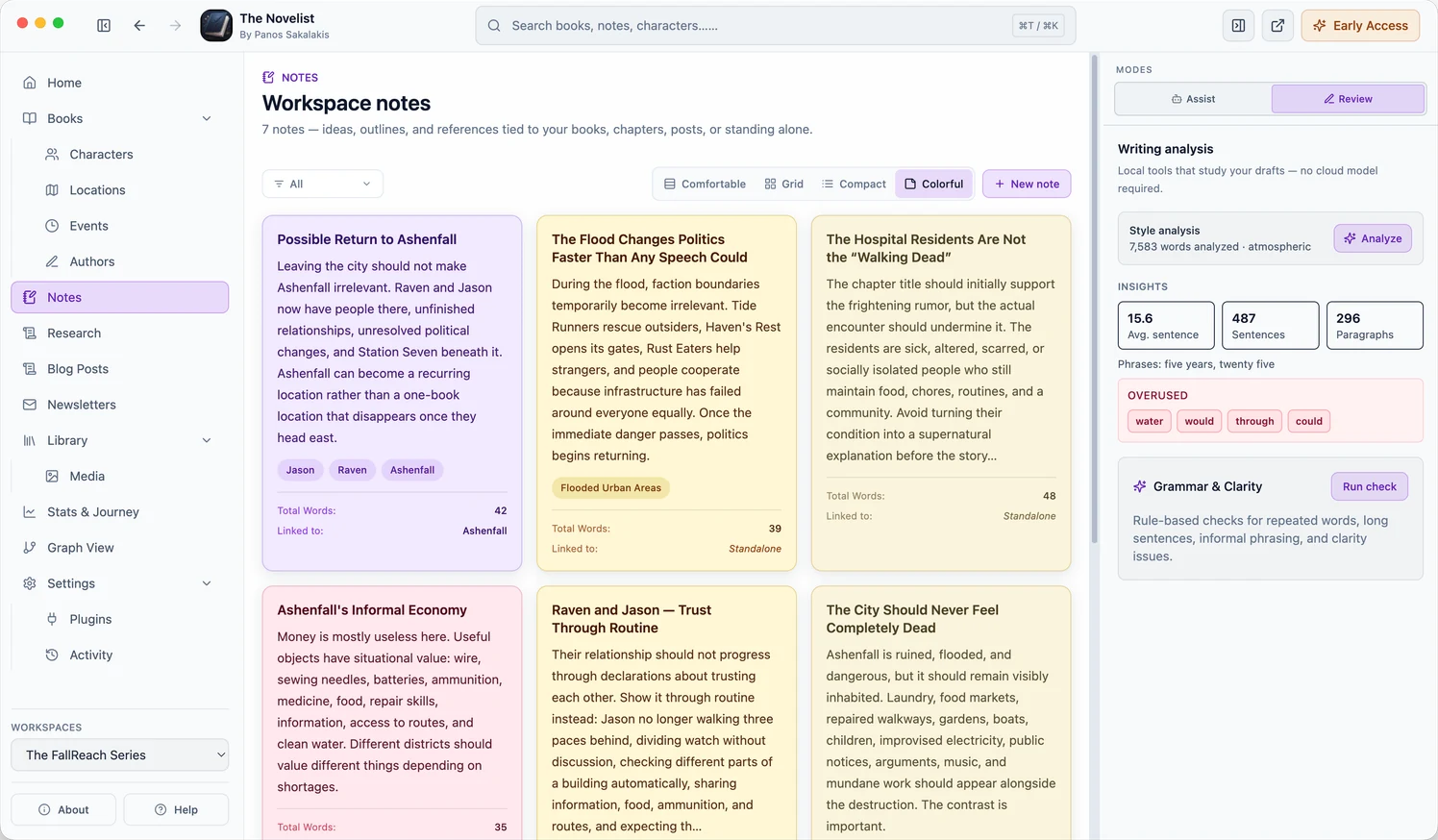
- Open the chapter you are working on, then choose Notes in the right sidebar.
- Choose New note. Under Attach new note to, select the current chapter, the book or another chapter in that book.
- Choose Create note, give the note a useful title and write your reminder.
- Edits save automatically after a short pause. You can also choose Save; look for Saved before moving on.
For example, attach “Let Mara notice the broken seal” to the chapter where it matters. Attach a broader reminder, such as “Keep the narrator's voice restrained”, to the book. In the panel, Chapter Notes shows reminders for the open chapter; All Notes includes the book's notes and notes attached to its chapters.
If the Notes tool is hidden, open Settings, choose Editor and enable Notes under Right sidebar.
Collect ideas away from the manuscript
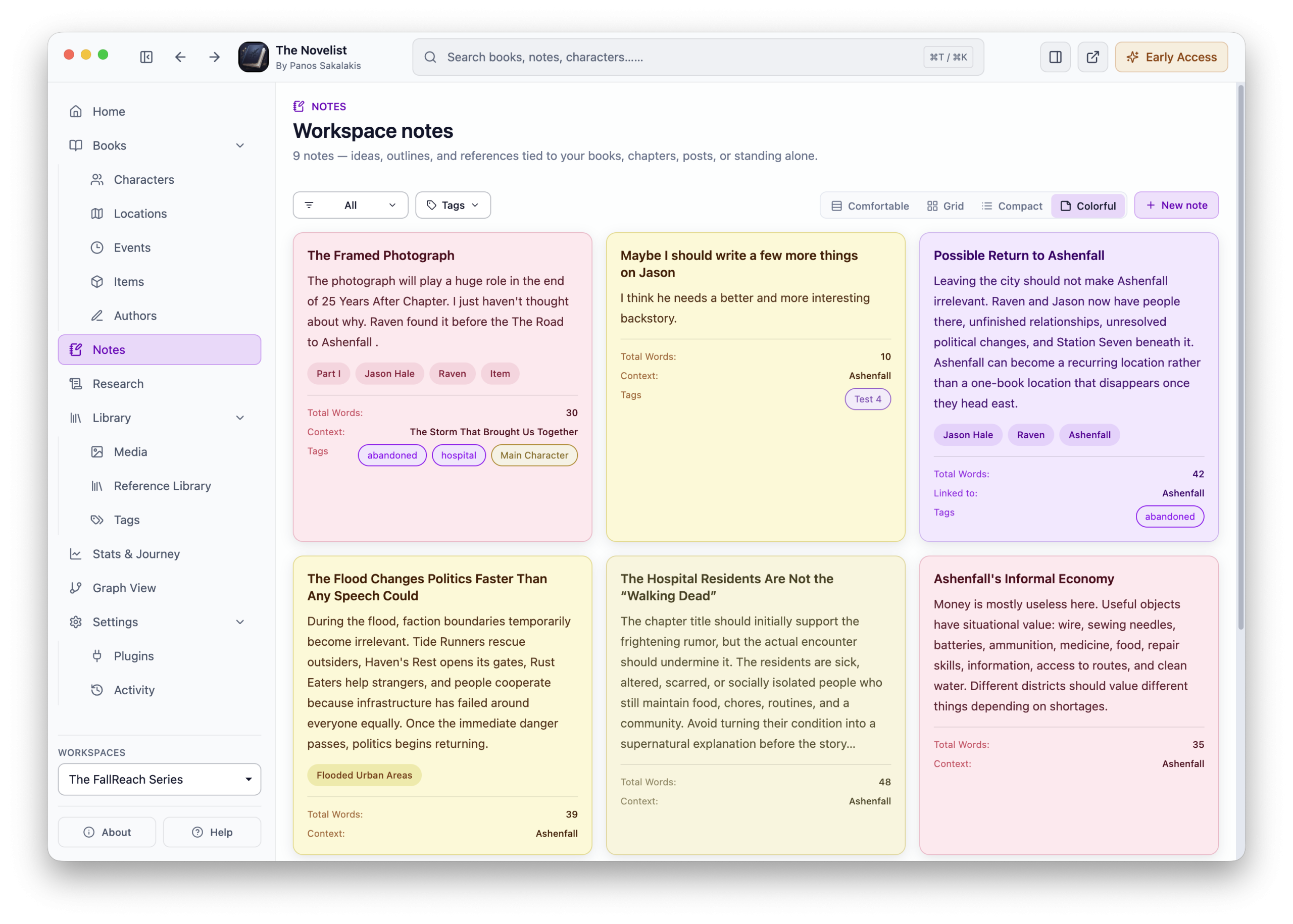
Open Notes in the left navigation and choose New note for an idea that does not yet belong to a particular scene. Opening an existing note takes you to its editor. The note's details let you change what it is attached to and add tags such as “revision” or “plot”.
Choose Comfortable, Grid, Compact or Colorful to browse in a layout that suits you. Filters help you find standalone or linked notes, and the tag filter narrows the list further. If a note is missing from a filtered list, return to All and All tags. Right-click a note to choose its colour.
Give research a home
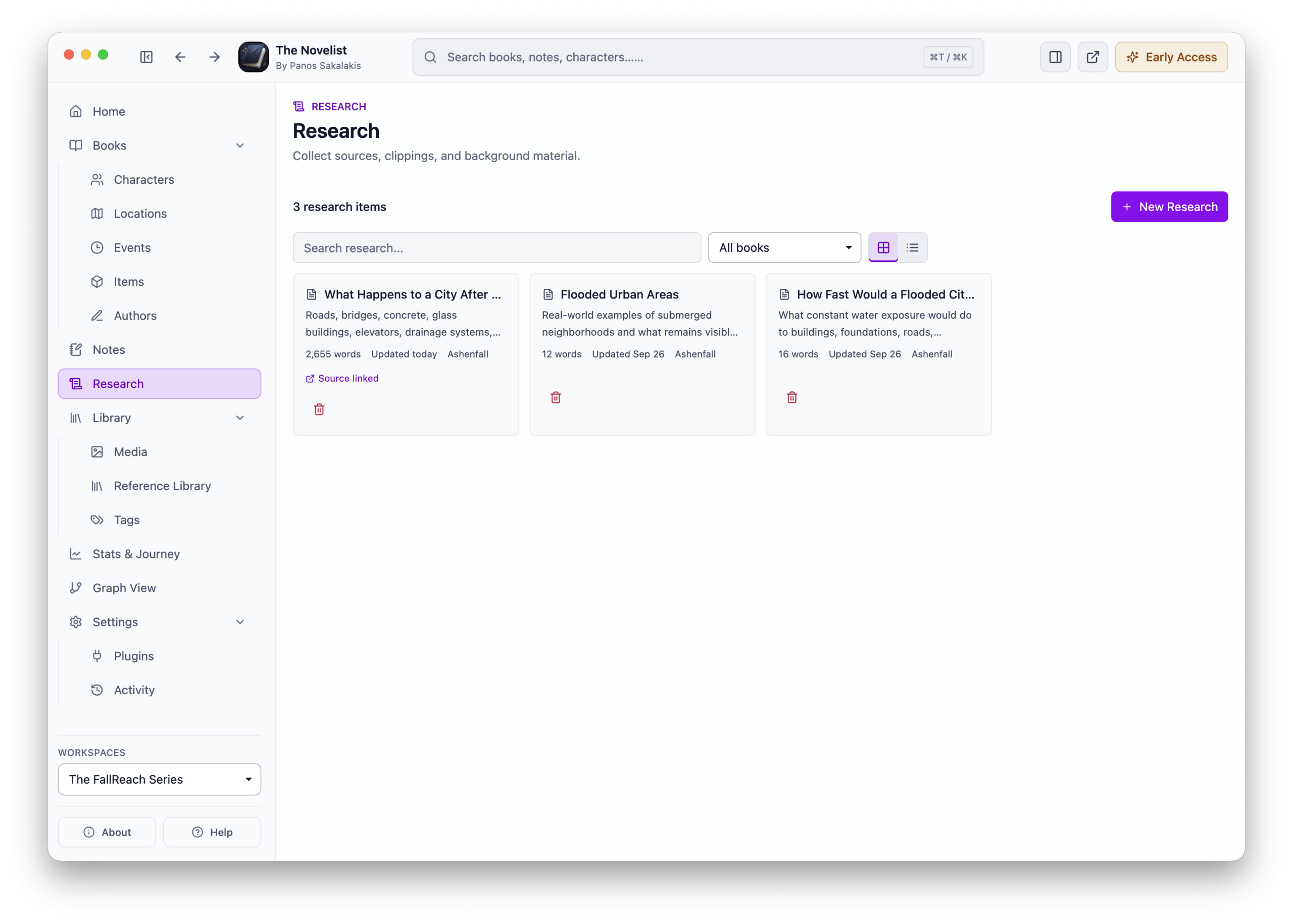
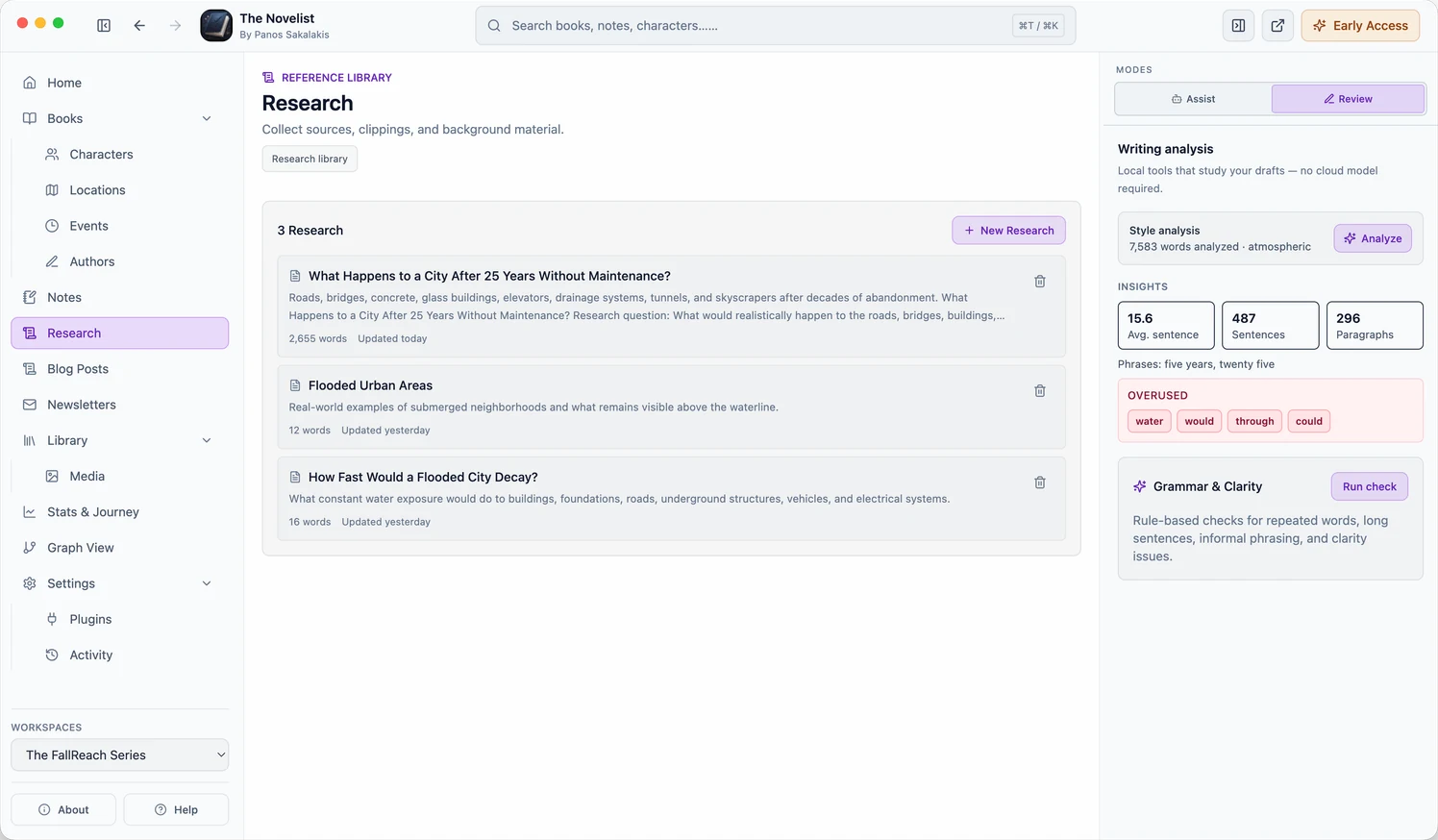
- Open Research in the left navigation.
- Choose New Research and give the document a recognisable title, such as “Night trains in 1930s Europe”.
- Write the facts, questions or background details you want to keep.
- Add the original page address in Source URL when you have one.
A useful research entry explains both what you found and why it matters to your scene. You might keep travel times, a scientific explanation or rules for your fictional world's magic. Include enough source information in the text to find the material again when you revise.
Organize reusable tags
Open Tags in the main navigation to create, rename, recolor or delete reusable tags. Select a tag to browse its linked writing and story material. Deleting a tag removes its assignments; it does not delete the writing.
A Note explicitly connected to a Book can also be linked to an Item from that book through its Connections controls.