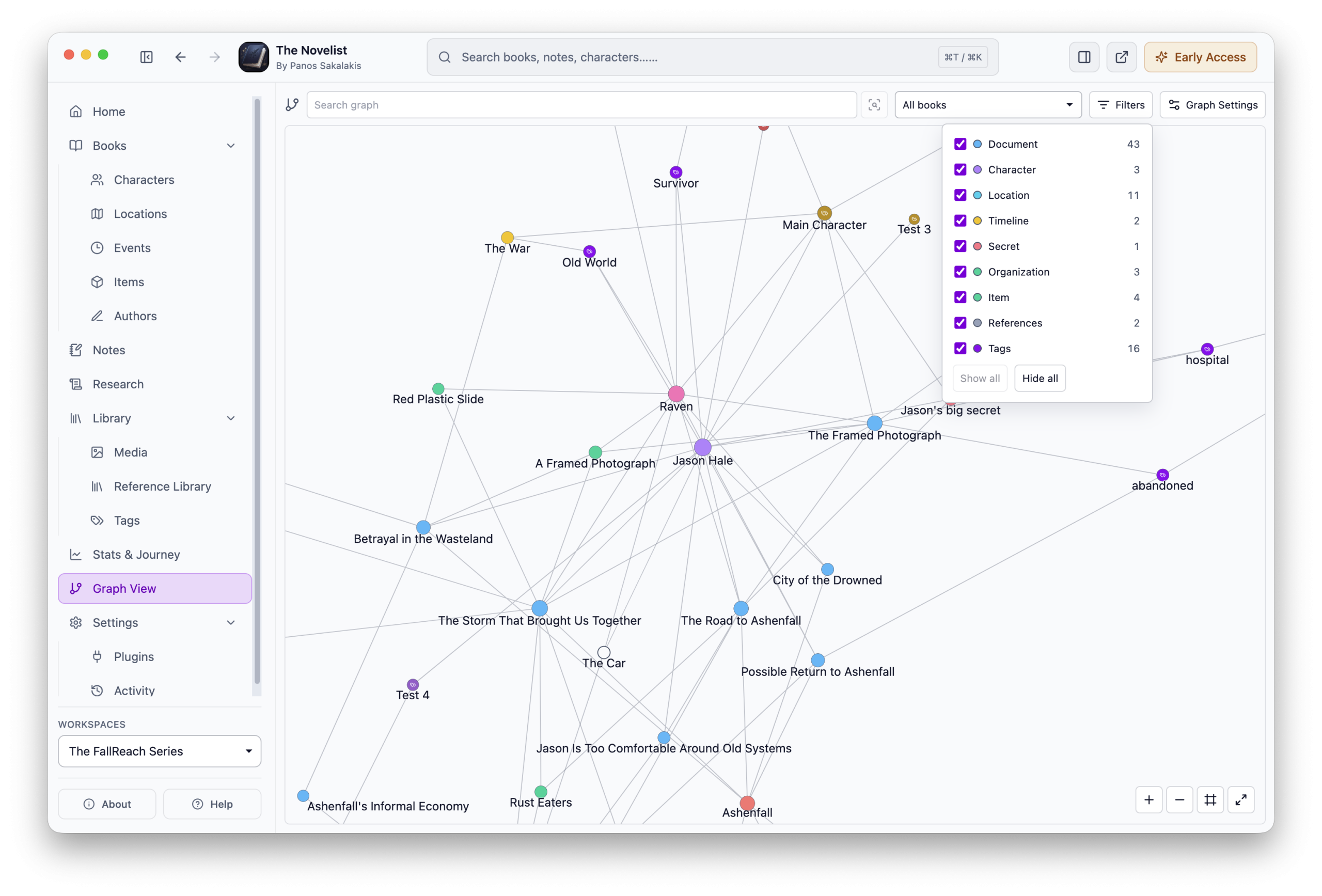
Explore Graph View
Graph View turns the connections in your story notes into a visual map. Points represent chapters, characters, places and other story material; lines show the links between them. It can help you follow a character's connections, revisit related scenes or look at how different parts of a book fit together during revision. Graph View is a Pro feature.
Open your story map
- Open Plugins and enable Graph View.
- Select Graph View in the left navigation.
- Choose a book from the book filter to concentrate on that story, or leave All books selected for a wider view of your workspace.
- Open Filters and check the kinds of story material you want to see. For example, keep characters and locations visible while exploring where your cast is connected.
Start with one book and a few kinds of material if the map feels crowded. You can add the other kinds back as you need them. Filters change what you see in the map; they leave your writing and story notes in place.
Follow a character or place
- Type a name into Search graph and choose a result. The map selects and centers it. Search follows the selected book and type filters, so check those first if a name is missing.
- Read the selected name and book above the map. Open its connection list to see the linked names and relationship labels.
- Choose a name in that list to move to the connected point.
- Select Open entity when you want to open the selected chapter or story entry.
For a closer look, select Direct connections. This keeps the selected point and its immediate links in view. 2 steps away and 3 steps away include connections farther out. Select Show all to return to the wider map while keeping your book and type filters.
Make the map comfortable to read
Drag an empty part of the map to move around, or drag an individual point away from a crowded cluster. Use the plus and minus controls to zoom. Recenter graph brings the map back into view, and Full screen gives it more room.
In Graph Settings, you can show or hide labels and adjust line thickness. Select Refresh there after making connections elsewhere and returning to the map.
When something seems absent
Check the book filter and Filters, then use Show all if you were exploring only nearby connections. A point without a line has no visible links in this view. To connect it, open the relevant story entry and add the relationship in its connection panel, or link it to a chapter with a mention. See mentions and Missing Connections for linking names already in your draft.