

If you’re writing a novel, there are high chances that you have a lot of characters. Some of them are protagonists, others are antagonists, others have supporting roles, and many have minor roles; that’s just how it is. This is the phase we call “worldbuilding”, and it’s where you have to organize all those characters in a proper way that will make your writing process easier.
When I started writing my first sci-fi novel, characters were a huge problem. I had over 40 characters, and I was still halfway through the story. The biggest issue for me was constantly searching for where I had placed a specific character I was writing about, and at that point, I was using Google Docs. My Google Drive account was filled with folders and documents, and it was taking a lot of time to find each one.
The other issue was that Google Docs itself sucks when it comes to resizing. You see, because I didn’t want to switch between apps or windows, I was trying to have one window on the side with my manuscript, another one on the other side with a character’s details, and sometimes even tried to have three to four Google Docs tabs active at the same time. It was a bloodbath.
If you ended up having the same problems (why would you be reading this after all?), let me show you a better way to create, manage, and even link all of your characters properly.
Download and install The Novelist
The first thing that you need to do is download and install the latest version of The Novelist. The app is currently available for Windows, macOS, and Linux.
There’s no version for iOS, Android, ChromeOS, or a web-based version that you can use from the website. A mobile app will be released in the future, though. As for the local-based version, that wouldn’t work since The Novelist is, by its nature, a privacy-focused and local-first app.
That means that it doesn’t collect any statistics (it can, if you let it, but it only collects anonymous things, such as which features you guys are using and which ones you’re never touching), it runs completely locally on your computer, and works offline. You’ll only need an internet connection if you want to activate the PRO version or update the app.
Create your first character
Once you launch the app for the first time, you can go to the ‘Characters‘ section that’s under ‘Books‘. Just click the “+ Add your first character” button to start creating your first character.
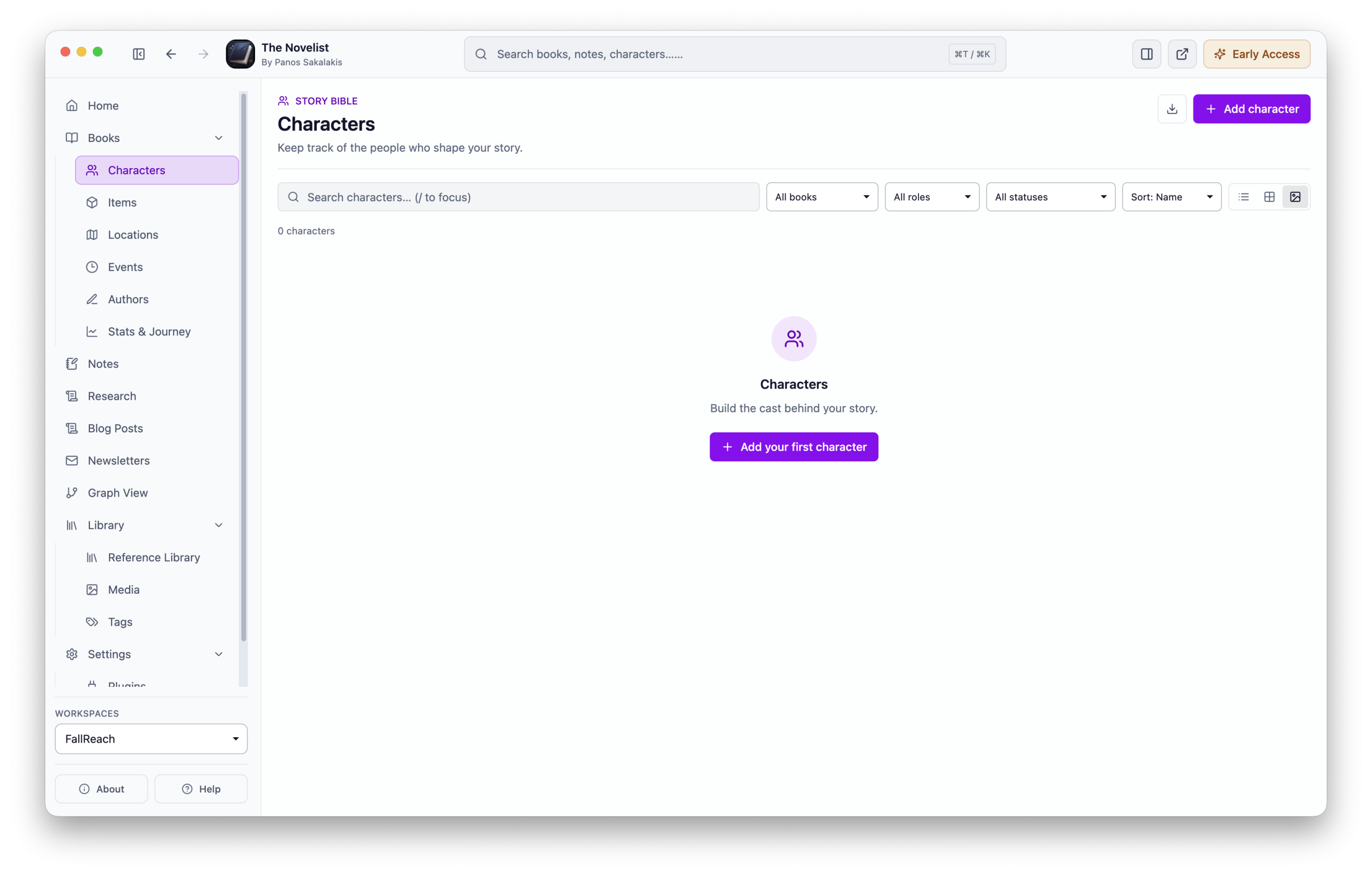
Since each character needs to feel “alive”, describing them and giving them a good backstory is important. The Novelist gives you a lot of fields that you can either fill in or leave blank, depending on how detailed you want things to be.
Some of the things that you can fill in for each character include:
- Name and aliases/nicknames.
- Role (protagonist, antagonist, love interest, mentor, supporting, and minor).
- Story status (alive, dead, missing, unknown, and cut from the manuscript).
- Background (description, personality, arc, and biography).
- Appearance, along with POV and voice.
- Motivation (goals, fears, flaws, internal need, wound, lie, and false belief).
- Character details (age/birth era, gender, pronouns, occupation, affiliation/faction, languages/culture, strengths/skills, mannerisms/tells, costume/visual anchors, secrets, home base, and more).
You can also add tags and choose a color for each of your characters.
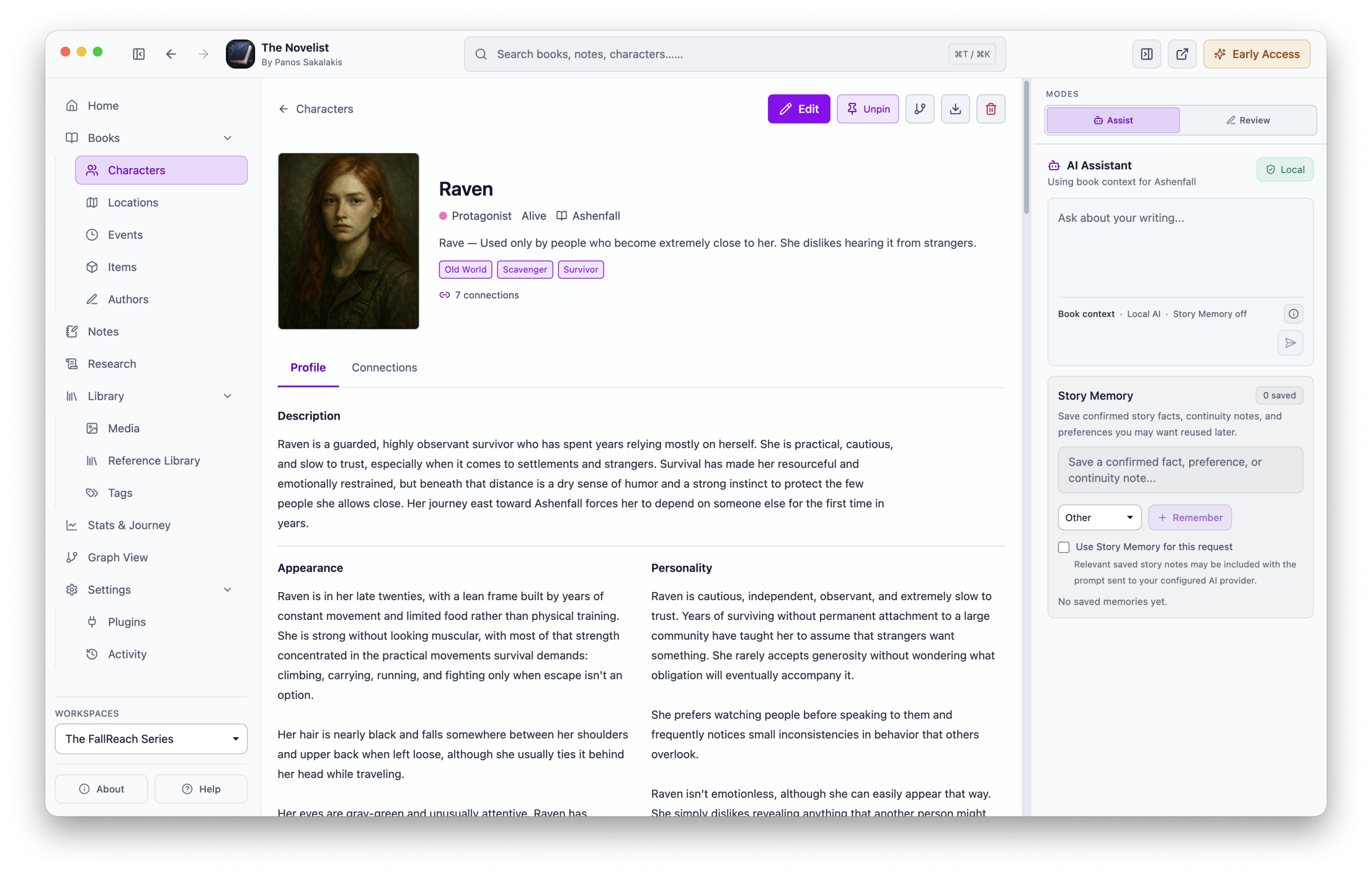
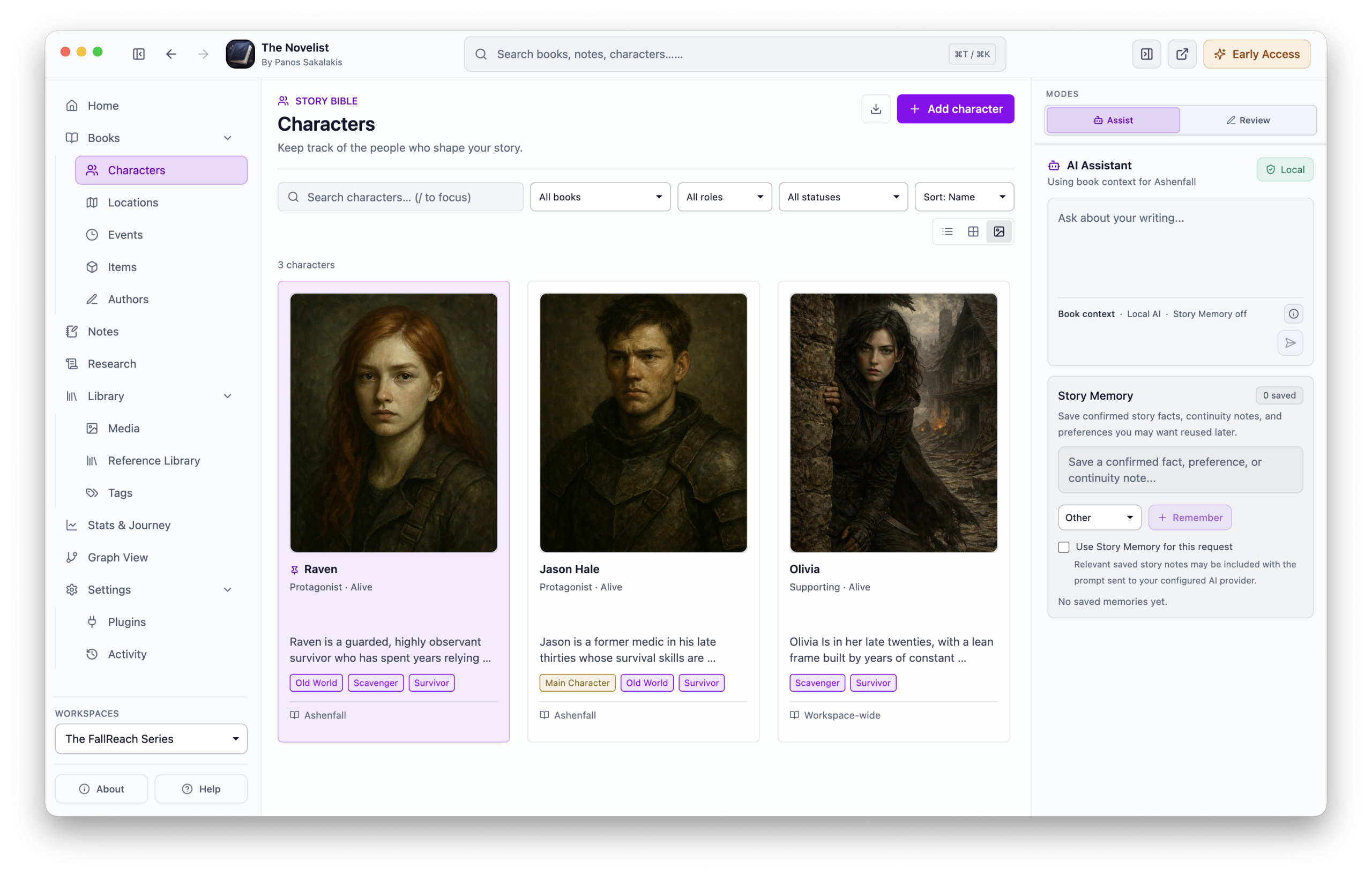
Once you’ve created a few characters, you can see the final result (check the screenshot below) and list them in different views. You can also quickly sort them based on their roles, statuses, and names.
Connect and quickly view your characters
While this is completely optional, for huge novels, it can make a huge difference. As the author, you need to know where each character has been, which locations they visited, and their relationships with other characters.
The Novelist offers the ability to create unlimited characters and link them with each other. It also gives you the ability to properly bring them to each of your chapters without leaving the text editor; just type @ and start writing. If there are existing characters, choose them. If not, there’s an option to quickly create them and move on.
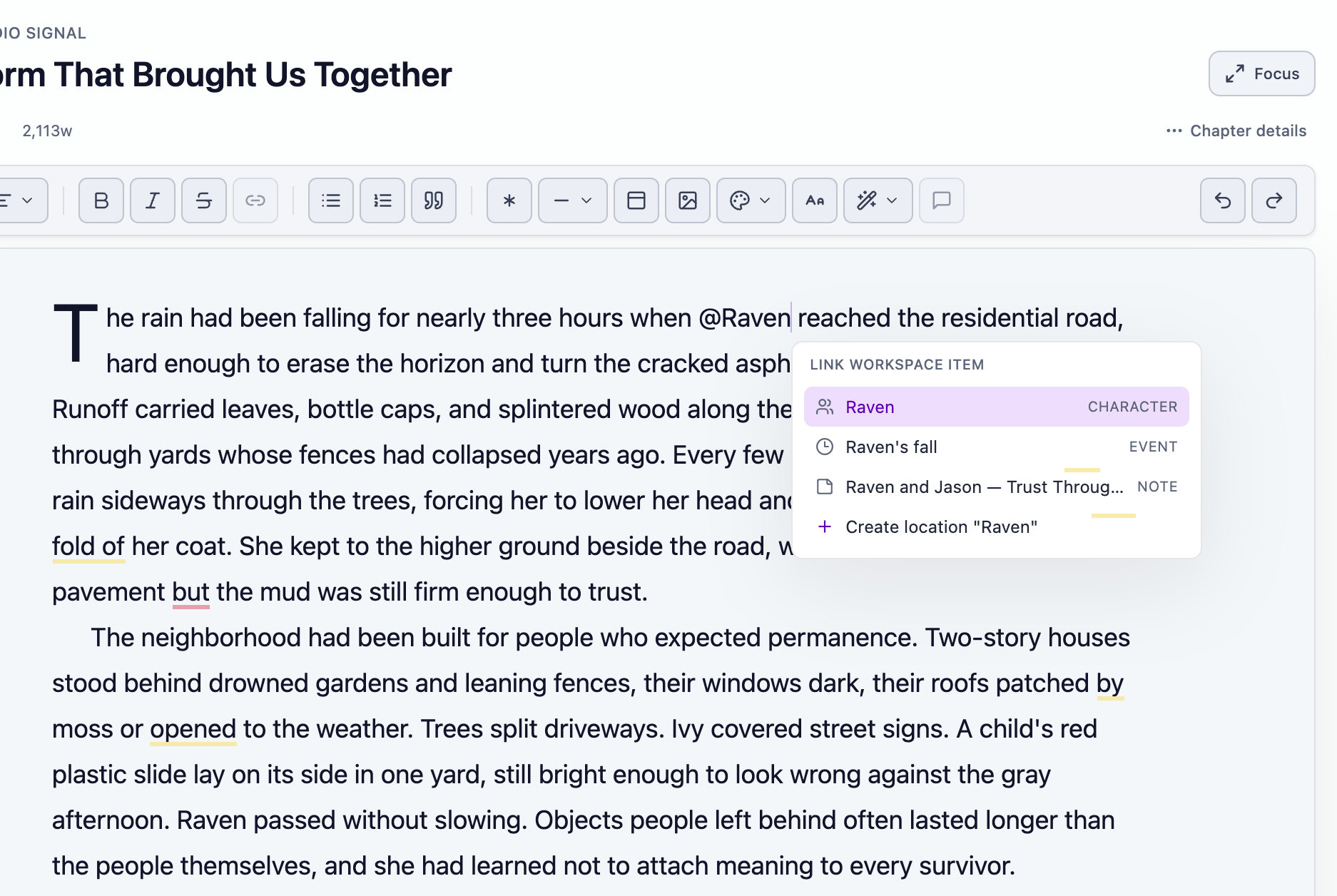
Each time you link a character in your manuscript, it will be colored so you can quickly find them through the text, and clicking on each one will display their information in the right navigation.
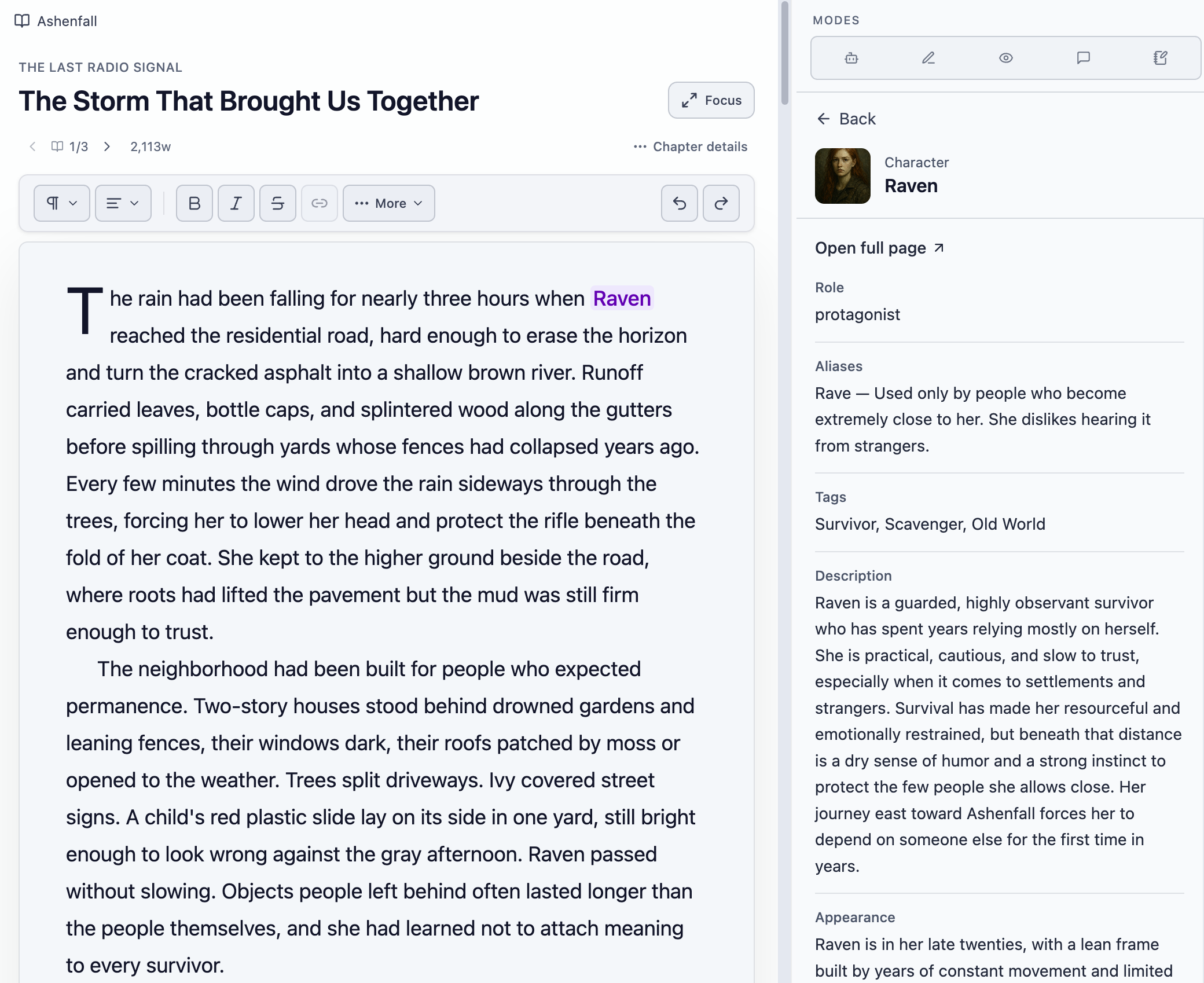
Click on “Open full page ↗” if you want to edit that character.
That’s a good way to stop switching between apps and windows just to see a character’s details, and more options will land in The Novelist app for that exact purpose with newer versions.
Checking where a character is connected to (including their relationships)
Now, let’s say that you created a few characters, linked them with other characters or even locations, and now you want to see where they may have traveled, their relationships, and if they have been mentioned in a specific chapter.
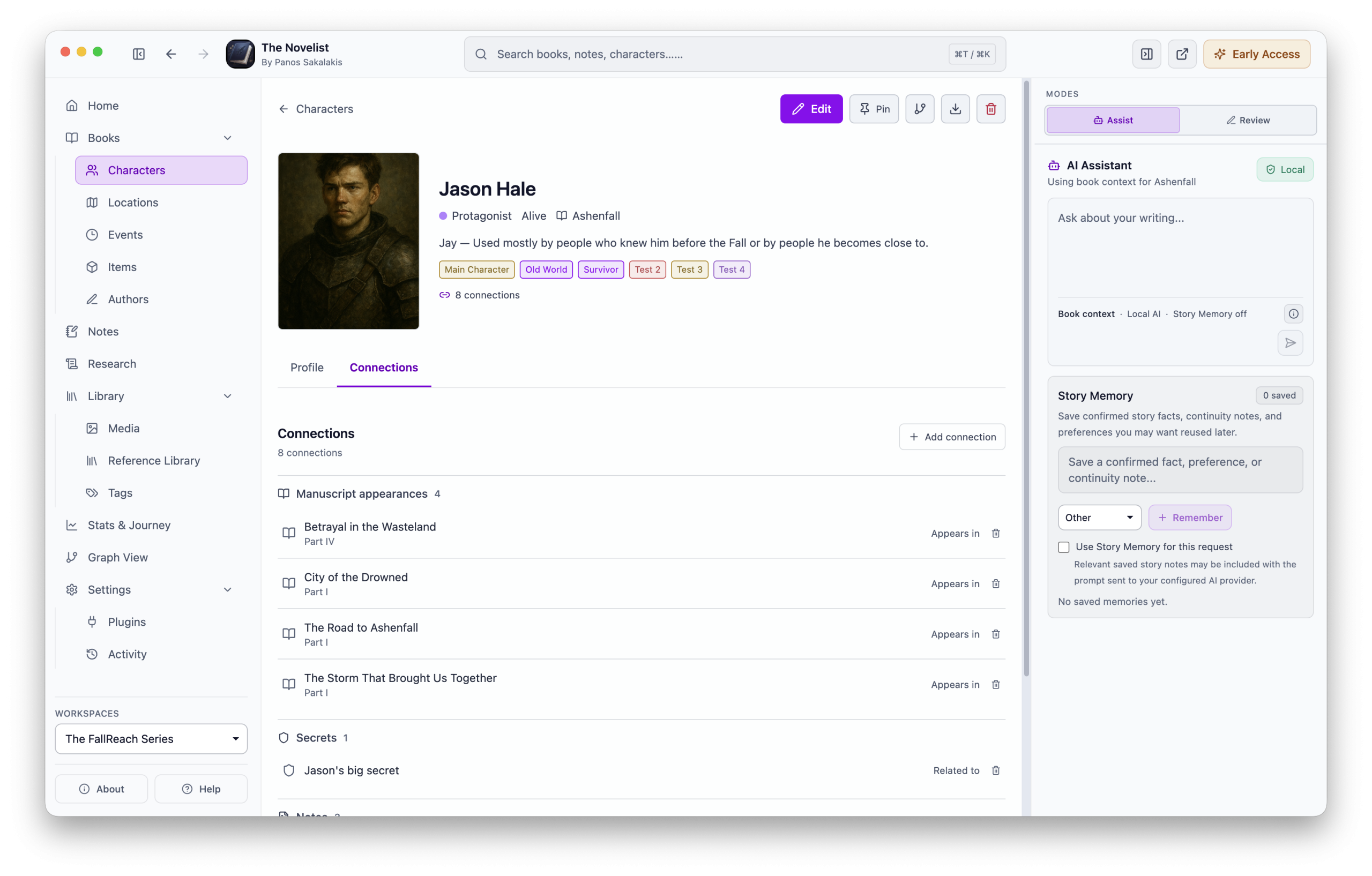
There are two ways for that: You can either check the ‘Connections‘ tab that’s included for each character, or use the ‘Graph View‘. The latter is only available for PRO users, though, and it’s the “fancy” way of checking your world’s connections.
Click on any character and go to the ‘Connections‘ tab to see all the connections. From there, you can either connect that character to more places or click on any of them to be redirected there.
If you purchased the PRO version of The Novelist, make sure that the ‘Graph View’ plugin has been enabled from the ‘Plugins‘ page, and you’ll find the option in the left navigation. This one offers a different kind of world view, and you can even adjust it to show only specific things, such as characters, locations, events, tags, and more.
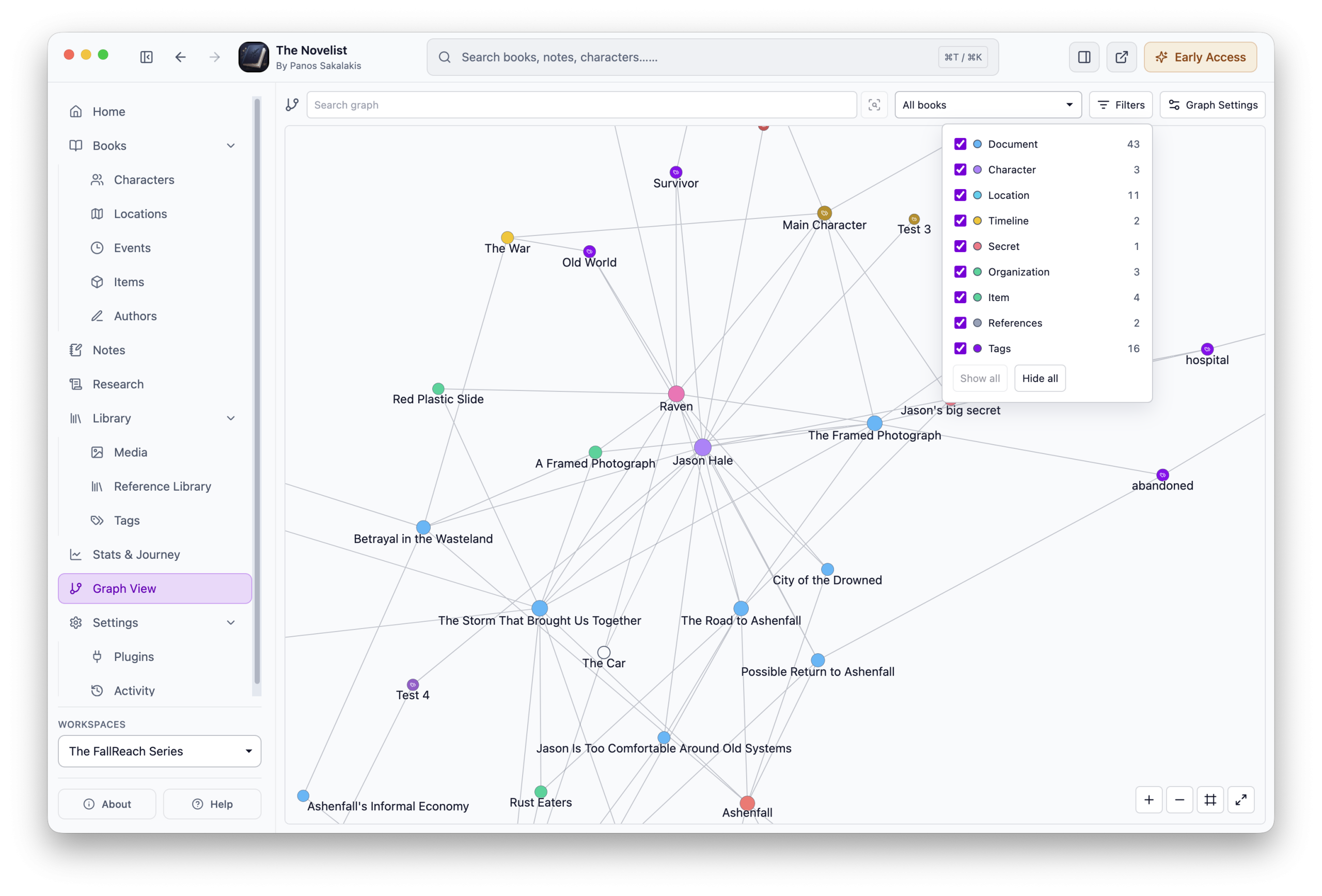
I’ll admit that this feature took most of my time. Building wasn’t an easy task, and making it work properly was even harder. While it still needs a lot of work, you’ll be seeing great new improvements with each new update.
Now, unlike the simple connections tab, with Graph View you can quickly spot any missing connections that you forgot about, such as a place that you never mentioned, an item or object that you forgot to write about in one of your chapters, and characters that you never really used.
1 click is all it takes to connect everything automatically
While The Novelist offers a robust system and interface to view, manage, and connect your characters, doing that manually still takes a lot of time. I wanted to make it easier and a whole lot faster to do that, so I built a tool that does exactly that with a simple click.
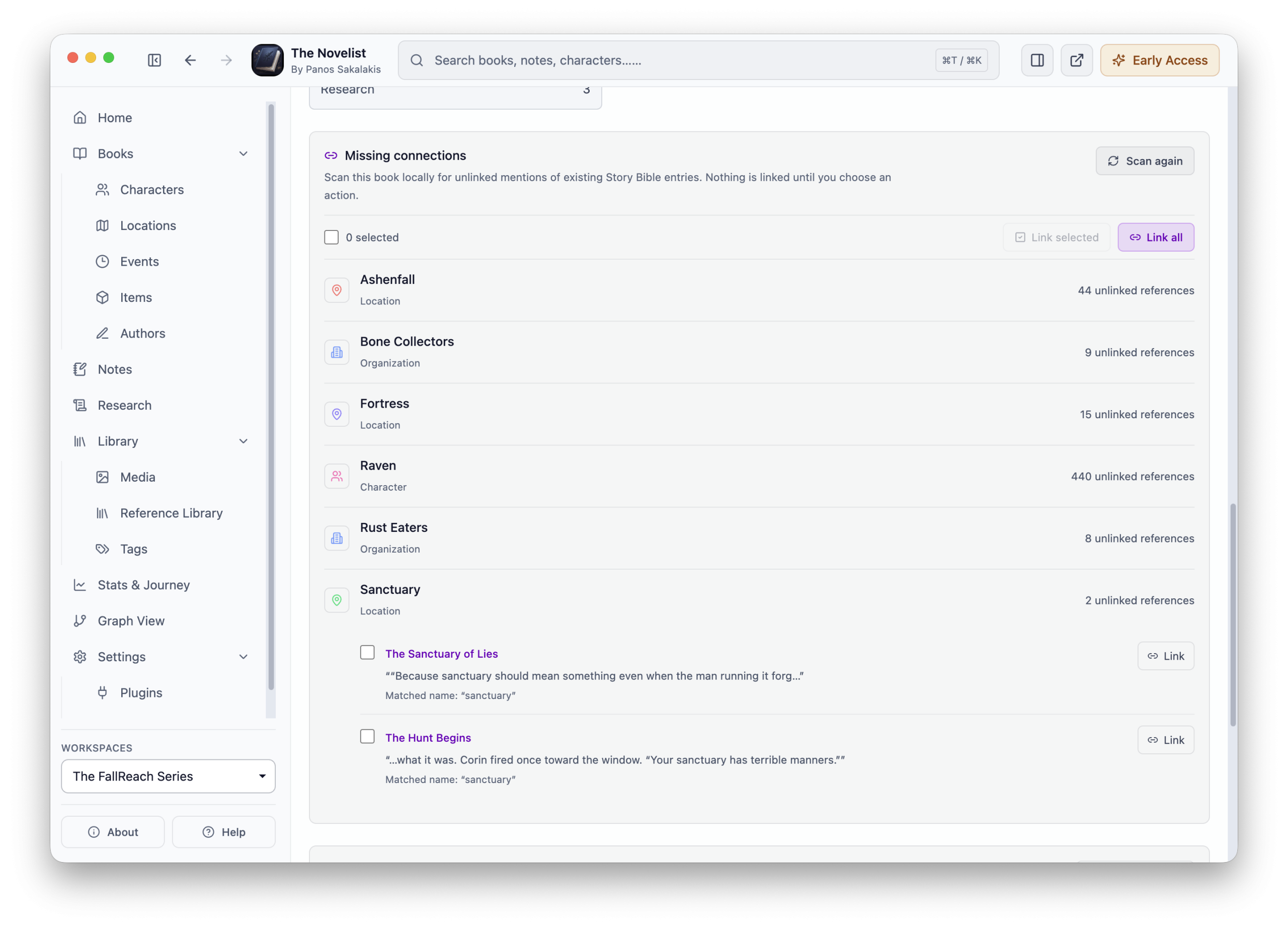
Go to your ‘Books‘ section, click on any book that you want, go to its ‘Overview‘ section, and scroll down until you see the “Missing Connections” feature.

Click on the “Find missing connections” button, and The Novelist will start analyzing all your characters, locations, events, and more based on many different things that I won’t bother you with. Once it has a result, it will give you the option to choose whether you want to connect everything or specific ones.
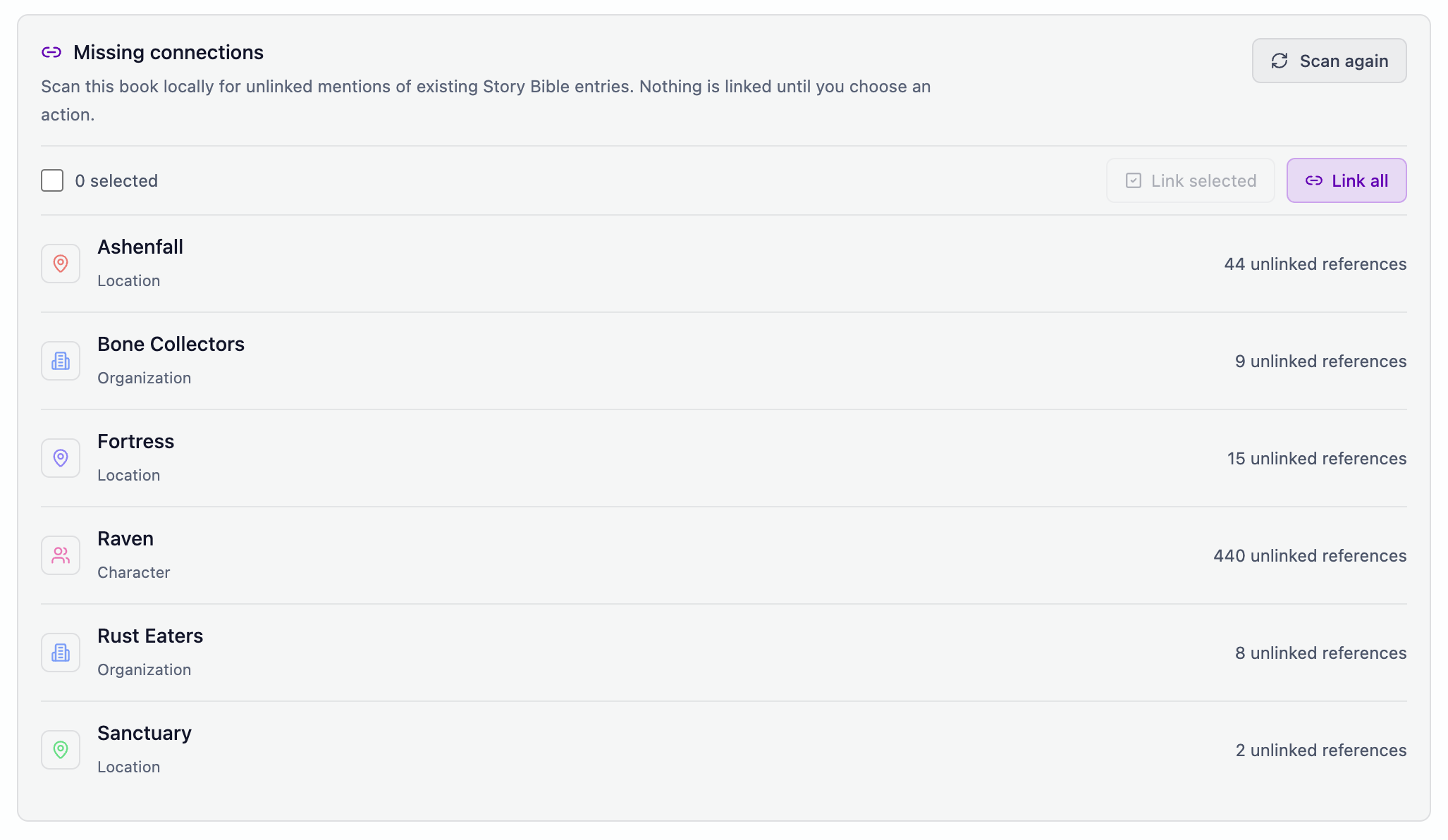
Click on any of the sections to open the list of unlinked references. From there, you can link them manually, which is the safest option, considering that The Novelist is still available in early access and may have bugs, even after hundreds of tests. So take a quick look to make sure it found the right things, and then you can click the “Link all” option.
More to come!
I’m actively working full-time on The Novelist, and my plan is to make it as stable and good as possible before releasing its stable version and distributing it on the Microsoft Store, Apple App Store, AUR catalogue, Snap Store (Snapcraft), and more.
There’s also a clear roadmap now that I’ve gotten so much feedback from folks all around the world, but I’ll share it on a dedicated page that I’m currently building. For the sake of it, though, that includes automatic synchronization across devices and an iOS release later. Android will also be supported in the future, and I may or may not make a compatible version for ChromeOS.
If you happen to give it a try, your feedback is more than welcome! You can either leave your comment down below, or reach out to me via email.
Leave a Reply